Before television, America gathered around a wooden box with a glowing dial and listened. Not to music. Not to the news. To stories. Thirty million families. One room. Eight o'clock. And then, in less than a decade, it was all gone.
All Posts (540)
Sort by

History of the Eagles is a 2013 two-part authorized documentary about the career of the American rock group the Eagles, directed by Alison Ellwood and co-produced by Alex Gibney. After screening at the 2013 Sundance Film Festival in January, it aired on Showtime in February, and was released in April on DVD and Blu-ray with a third disc containing eight songs from the band's performance at the Capital Centre in March 1977. A concert tour of the same name took place from 2013 to 2015, visiting North America, Europe, and Oceania.
At the 65th Primetime Creative Arts Emmy Awards, the film received the award for Outstanding Sound Mixing for Nonfiction Programming. It was also nominated for Outstanding Sound Editing for Nonfiction Programming (Single or Multi-Camera).
The Super Deluxe Limited Edition Box Set received a Bronze Prize at the 2013 Key Art Awards.
Part one of the documentary traced the beginning of the band to the breakup in 1980. It chronicles the early life of band members and the founding of the band, the making of their albums and their rise to success, the subsequent conflicts between band members, concluding with the breakup of the band.
Part two of the documentary begins with the period following the breakup, with brief accounts of the careers of individual members of the band and by the reunion of the band in 1994, followed by the 1990s and 21st century phases of the Eagles. The documentary shows that Frey was resistant to the idea of a reunion until they joined Travis Tritt for the making of the video of his cover of "Take It Easy". It documents their successful tours, the dispute with Don Felder and the period after his dismissal. It concludes with the band members looking back assessing their actions and career, with contributions from other people who knew them.

Legendary radio collector John Tefteller presents the best of mystery, comedy, horror, and adventure stories, produced by the greatest writers, directors, composers, and stars.
In 1992, John Tefteller brought the first Good Old Days Of Radio Show to the airwaves on local Southern Oregon station, KOPE-FM. For three hours every Saturday and Sunday night, thousands of listeners of all ages tuned in to hear the show, earning it ‘the highest rated radio program’ in its time slot.
This show was different from all other programs that presented vintage radio to modern day listeners. Not only was the sound quality of the shows themselves the finest possible, but the programs chosen to air represented only the very best that radio drama, variety, and comedy had to offer.
The new, podcast version of The Good Old Days Of Radio show now brings these great programs to a world wide internet audience.

Added a mp3 playlist button you will notice at the bottom left or bottom of a page, Any pages that have direct MP3 links will be available as a playlist.
Click or tap on on playlist icon to expand the playlist

Sample: Button on bottom left or botton of page
Crime Classics (003) 1953-06-29

For 50 years radio dominated the airwaves and the American consciousness as the first “mass medium.” In Empire of the Air: The Men Who Made Radio, Ken Burns examines the lives of three extraordinary men who shared the primary responsibility for this invention and its early success, and whose genius, friendship, rivalry and enmity interacted in tragic ways. This is the story of Lee de Forest, a clergyman’s flamboyant son, who invented the audion tube; Edwin Howard Armstrong, a brilliant, withdrawn inventor who pioneered FM technology; and David Sarnoff, a hard-driving Russian immigrant who created the most powerful communications company on earth.
Against the backdrop of radio’s “Golden Age,” Empire of the Air relates the history of radio through archival photographs, newsreels of the period and interviews with such well-known radio personalities as the late Sports Commentator Red Barber, Radio Dramatist Norman Corwin and the late Broadcast Historian Erik Barnouw.
Dramatization of the Lucy Maud Montgomery classic Anne of Green Gables
A willful orphan named Anne, a red-haired "exception", arrives at the home of an elderly sister and brother, and wonderful life adventures begin as Anne matures from a skinny, freckled girl into an intriguing young woman. Along the way, she embraces everyone with her imagination and dreams, and the beautiful town of Avonlea will never be the same.
The book is read as a radio play, with an all-star Canadian cast that includes multiple Emmy and Golden Globe Award winners. Sandra Oh narrates, Catherine O'Hara is Marilla Cuthbert, Victor Garber plays Matthew Cuthbert, and 17-year-old Michela Luci, an Emmy winner for her role in Dino Dana, takes on the title role of Anne.
Directed by Megan Follows who describes it as an entirely different kind of approach to the novel.
Intoduction
LINK: Anne of Green Gables (Dramatized)

Megan Follows was excited to dig into Lucy Maud Montgomery's text for the audiobook recording.


Release Date: April 24, 2026 (USA)
The story of pop superstar Michael Jackson -- from his extraordinary early days in the Jackson 5 to the visionary artist whose creative ambition fuels a relentless pursuit to become the biggest entertainer in the world.

Crime Classics came to CBS September 30, 1953 and was a neat little series of "true crime stories". The show introduced itself succinctly: "Crime Classics, a series of true crime stories from the records and newspapers of every land, from every time. Your host each week, Mr. Thomas Hyland -- connoisseur of crime, student of violence, and teller of murders." Thomas Hyland was played by Lou Merrill, although you'd never know it was an "actor" doing the part. The great Elliott Lewis, actor, producer and director of Suspense, Broadway is My Beat, and On Stage is in charge of this very intelligent and enjoyable show. Bernard Herrmann composed the music that duplicated authentic music of the era being dramatized. Morton Fine and David Friedkin wrote the scripts. Lewis and his writers collected and developed true crime stories expressly for Crime Classics.
Thomas Hyland's delivery is measured and mild-mannered, as if giving a college lecture. Would that all professors were this interesting! The actors in the stories themselves are uniformly sensitive. Orchestral scores by the great Bernard Hermann, who did Orson Welles' Mercury Theater radio show and then Alfred Hitchcock's films, give the stories sophistication and mood. So do the tasteful sound effects. There is a wry, cool-blooded tone to the proceedings.
Cases profiled on the series ranged from seventeenth-century murder to the assassination of Abraham Lincoln. Each and every story, however bizarre, is actually based on fact. For example, the show about the Younger Brothers of the American West has some very interesting background details concerning Quantrell's Raiders and the Kansas Jayhawks. In the story of "John Hayes, his Head, and How They Were Parted," we hear the tale of a glassblower who blows glass perfectly and completely surrounding the severed head of a unknown dead man and placed in glass. Then it is placed in a museum where it remained pending identification. Thus his killers were found out by the dead man, using his head.
Crime Classics (000) 1952-12-03 (Audition)
Crime Classics (001) 1953-06-15
Crime Classics (002) 1953-06-22
Crime Classics (003) 1953-06-29 (AFRTS)
Crime Classics (003) 1953-06-29
Crime Classics (004) 1953-07-06
Crime Classics (005) 1953-07-13
Crime Classics (006) 1953-07-20
Crime Classics (007) 1953-07-27 (AFRTS)
Crime Classics (007) 1953-07-27
Crime Classics (008) 1953-08-03
Crime Classics (009) 1953-08-10 (AFRTS)
Crime Classics (009) 1953-08-10
Crime Classics (010) 1953-08-17
Crime Classics (011) 1953-08-24 (AFRTS)
Crime Classics (011) 1953-08-24
Crime Classics (012) 1953-08-31 (AFRTS)
Crime Classics (012) 1953-08-31
Crime Classics (013) 1953-09-07 (AFRTS)
Crime Classics (014) 1953-09-30
Crime Classics (015) 1953-10-07
Crime Classics (016) 1953-10-14
Crime Classics (017) 1953-10-21
Crime Classics (018) 1953-10-28
Crime Classics (019) 1953-11-04 (AFRTS)
Crime Classics (019) 1953-11-04
Crime Classics (020) 1953-11-11
Crime Classics (021) 1953-11-18
Crime Classics (022) 1953-11-25 (AFRTS)
Crime Classics (022) 1953-11-25
Crime Classics (023) 1953-12-02 (AFRTS) (27.1Mb)
Crime Classics (023) 1953-12-02
Crime Classics (024) 1953-12-09 (AFRTS)
Crime Classics (024) 1953-12-09
Crime Classics (025) 1953-12-16 (AFRTS)
Crime Classics (025) 1953-12-16
Crime Classics (026) 1953-12-30 (AFRTS)
Crime Classics (026) 1953-12-30
Crime Classics (027) 1954-01-06
Crime Classics (028) 1954-01-13
Crime Classics (029) 1954-01-20 (AFRTS)
Crime Classics (029) 1954-01-20
Crime Classics (030) 1954-01-27
Crime Classics (031) 1954-02-03
Crime Classics (032) 1954-02-10
Crime Classics (033) 1954-02-17 (AFRTS)
Crime Classics (033) 1954-02-17
Crime Classics (034) 1954-02-24
Crime Classics (035) 1954-03-03 (AFRTS)
Crime Classics (036) 1954-03-10 (AFRTS)
Crime Classics (037) 1954-03-17
Crime Classics (039) 1954-03-31
Crime Classics (040) 1954-04-07
Crime Classics (041) 1954-04-14
Crime Classics (042) 1954-04-21 (AFRTS)
Crime Classics (043) 1954-04-28
Crime Classics (044) 1954-05-05 (AFRTS)
Crime Classics (045) 1954-05-12 (AFRTS)
Crime Classics (046) 1954-05-26 (AFRTS)
Crime Classics (046) 1954-05-26
Crime Classics (047) 1954-06-02
Crime Classics (048) 1954-06-09
Crime Classics (049) 1954-06-16
Crime Classics (050) 1954-06-23 (AFRTS)
One of our Times Past members (TheMadBlonde) is involved in Red-Throated League, the theatrical society of the Norwegian Explorers of Minnesota. They are dedicated to performing the Old-Time Radio scripts of Edith Meiser, one of the greatest producers in the Golden Age of Radio. The Red-Throated League was founded in 1995 by Bob Brusic and other members of the Norwegian Explorers.
They work with the Explorers and the Sherlock Holmes Special Collections of the University of Minnesota Libraries, where Ms. Meiser's scripts reside. Their performances include live sound effects (or "Foley") as well as period advertisements. They try to create an authentic and enjoyable experience during their annual productions.
An upcoming performance A Sherlock Holmes Radio Play Performance “The Adventure of the Crooked Man” will be Saturday, May 16, 1:00 PM. 2026. More information can be found HERE
Prior recreations can be found on their Youtube channel HERE
Example:

Between 1997 and 2001, at the height of the dot-com bubble, the Sci-Fi channel decided to invest some money into producing a number of original audio stories under the banner of Seeing Ear Theater, essentially a “next generation” of radio plays for a modern audience. A talented team of script-writers, excellent actors and sound effects people crafted a series of remarkable episodes, breathing life into the stories of both classic writers, like Harlan Ellison and Frederic Brown, and modern writers, like Neil Gaiman and J. Michael Straczynski.
Kindred - Part 1 of 4 (10.7Mb)
Kindred - Part 2 of 4 (13.6Mb)
Kindred - Part 3 of 4 (6.1Mb)
Kindred - Part 4 of 4 (14.8Mb)
History of the Devil - Part 1 (10Mb)
History of the Devil - Part 2 (8.4Mb)
History of the Devil - Part 3 (7.8Mb)
History of the Devil - Part 4 (7.6Mb)
History of the Devil - Part 5 (9.6Mb)
Snow Glass Apples - Part 1 (12.3Mb)
Snow Glass Apples - Part 2 (8.9Mb)
An Elevator and a Pole - Part 1 (13.2Mb)
An Elevator and a Pole - Part 2 (12.8Mb)
The Martian Crown Jewels (16.1Mb)
The Time Machine - Part 1 (13.8Mb)
The Time Machine - Part 2 (14.8Mb)
Black Canoes (25.7Mb)
Titanic Dreams (10Mb)
The Moon Moth - Part 1 (10.8Mb)
The Moon Moth - Part 2 (14.4Mb)
The Lucky Strike - Part 1 (7.2Mb)
The Lucky Strike - Part 2 (10Mb)
A Good Knight's Work - Part 2 (NO PART 1 AVAILABLE) (4.1Mb)
The Jaguar Hunter - Part 1 (8.4Mb)
The Jaguar Hunter - Part 2 (6.6Mb)
Fire Watch - Part 1 (5.9Mb)
Fire Watch - Part 2 (7.6Mb)
Facade (11.1Mb)
Legend of Sleepy Hollow (3.5Mb)
A Dry Quiet War - Part 1 (8Mb)
A Dry Quiet War - Part 2 (6.3Mb)
Diary of A Mad Deity - Part 1 (4.8Mb)
Diary of A Mad Deity - Part 2 (5.7Mb)
Child's Play (16.5Mb)
In The Shade of the Slowboat Man (11.9Mb)
Greedy Choke Puppy (8.5Mb)
The Nostalgianauts (9.9Mb)
Knock (10.1Mb)
The Man Who Could Work Miracles (11.1Mb)
Breakaway, Breakdown (8.3Mb)
Emily 501 - Part 1 (5.7Mb)
Emily 501 - Part 2 (3.7Mb)
Marilyn or the Monster - Part 1 (6.3Mb)
Marilyn or the Monster - Part 2 (4.1Mb)
Sorry, Wrong Number (6Mb)
Jumping Niagara Falls (9.1Mb)
Feel The Zaz - Part 1 (6.2Mb)
Feel The Zaz - Part 2 (8.7Mb)
Neil Gaiman's Murder Mysteries - Part 1 (8.9Mb)
Neil Gaiman's Murder Mysteries - Part 2 (8.4Mb)
Propagation of Light in a Vacuum - Part 1 (5.4Mb)
Propagation of Light in a Vacuum - Part 2 (5.4Mb)
Meet The Neighbor (2.9Mb)
Orson The Alien (13.2Mb)
The Wheel - Part 1 (5.7Mb)
The Wheel - Part 2 (6.1Mb)
Daughter Earth - Part 1 (4.3Mb)
Daughter Earth - Part 2 (4.2Mb)
Other Worlds (5.1Mb)
Times Arrow, Time's Spiral (7.9Mb)
Alice In Wonderland - Part 1 (6.8Mb)
Alice In Wonderland - Part 2 (5.9Mb)
The Flat Edge of the Earth - Part 1 (7.9Mb)
The Flat Edge of the Earth - Part 2 (6Mb)
The Country Doctor (4.7Mb)
The First (and Last) Musical on Mars - Part 1 (7.2Mb)
The First (and Last) Musical on Mars - Part 2 (6.3Mb)
The First (and Last) Musical on Mars - Part 3 (6.2Mb)
George and the Red Giant - Part 1 (5.1Mb)
George and the Red Giant - Part 2 (5.3Mb)
The Bigger One (3.4Mb)
Too Late - An Experiment in Sound (3.4Mb)
The Signal-Man (6.8Mb)
A Clean Escape (6.8Mb)
Herd Mentality - Part 1 (6.1Mb)
Herd Mentality - Part 2 (6.5Mb)
Death Of Captain Future - Part 1 (7.4Mb)
Death Of Captain Future - Part 2 (5.5Mb)
Think Like a Dinosaur - Part 1 (5.8Mb)
Think Like a Dinosaur - Part 2 (5.5Mb)
Wanted In Surgery (10.6Mb)
The Oblivion Syndrome (11.3Mb)
Monkeys Paw (4.2Mb)
The Tell-Tale Heart (5.5Mb)
Into The Sun (5.8Mb)
The NPR 100
National Public Radio
Throughout the year 2000, NPR presented the stories behind 100 of the most important American musical works of the 20th century. These special features cover music from a wide variety of genres -- classical, jazz, rock'n'roll, country, R&B, musical theatre and film scores. NPR 100 stories aired on All Things Considered, Morning Edition, and NPR's weekend news magazine programs.
You can listen to and download the tracks which are still available on their web site.
LINK:
With the help of their staff, more than 14,000 listeners, and a panel of renowned American musicians, National Public Radio showcased the “100 most important American musical works of the 20th century.” These engaging pieces aired throughout the year 2000 on All Things Considered, Morning Edition, Weekend Edition Saturday, Weekend Edition Sunday and Weekend All Things Considered. A dream course in contemporary music appreciation, this ambitious series consisting of 1900 features told the story behind each musical work under consideration. Through music and interviews, the series producer Elizabeth Blair and the executive producers Murray Horwitz and Andy Trudeau led a multitude of producers, editors, reporters, commentators and hosts connecting listeners to the creative process, examining the cultural contexts in which the works were created and revealing how musicians developed their music and transformed it into art the endures. Never formulaic, these segments treated listeners to a variety of genres including musical scores, rap tunes, blues, rock, country & western and much more. The diversity of multicultural musical choices was thought provoking and robustly representative of America’s varied strains. For giving listeners a comprehensive, insightful review of music that became the national sound track of the Twentieth Century, a Peabody goes to The NPR 100.
Here are a few random Examples:
The Sock-It-To-Me Truth Of 'Respect'
The List Available
- ADAGIO FOR STRINGS, SAMUEL BARBER (1938)
- AIN'T THAT A SHAME, words/music ANTOINE "FATS" DOMINO/DAVE BARTHOLOMEW; as performed by FATS DOMINO (1955)
- ALEXANDER'S RAGTIME BAND, words/music IRVING BERLIN (1911)
- ALL OR NOTHING AT ALL, words/music JACK LAWRENCE/ARTHUR ALTMAN; as performed by FRANK SINATRA with HARRY JAMES & HIS ORCHESTRA (1939)
- APPALACHIAN SPRING, AARON COPLAND (1944)
- AS TIME GOES BY, words/music HERMAN HUPFELD (1931)
- BACK IN THE SADDLE AGAIN, words/music RAY WHITLEY/GENE AUTRY; as performed by GENE AUTRY (1939)
- BLOWIN' IN THE WIND, words/music BOB DYLAN; as performed by BOB DYLAN (1962)
- BLUE MOON OF KENTUCKY, words/music BILL MONROE (1946); as performed by BILL MONROE AND HIS BLUE GRASS BOYS (1954)
- BLUE SUEDE SHOES, CARL PERKINS; as performed by CARL PERKINS (1955)
- BODY AND SOUL, words EDWARD HEYMAN/ROBERT SOUR/FRANK EYTON, music JOHNNY GREEN (1930); as performed by COLEMAN HAWKINS & HIS ORCHESTRA (1939)
- BORN TO RUN (LP), BRUCE SPRINGSTEEN (1975)
- A CHORUS LINE (musical), words EDWARD KLEBAN/music MARVIN HAMLISCH (1975)
- COAL MINER'S DAUGHTER, words/music LORETTA LYNN; as performed by LORETTA LYNN (1970)
- CRAZY, words/music WILLIE NELSON; as performed by PATSY CLINE (1961)
- DJANGO, JOHN LEWIS; as performed by THE MODERN JAZZ QUARTET (1954)
- DREAM A LITTLE DREAM OF ME, words GUS KAHN/music WILBUR SCHWANDT and FABIAN ANDRE (1931)
- DRUMMING, STEVE REICH (1971)
- FIDDLER ON THE ROOF (musical), words SHELDON HARNICK/music JERRY BOCK (1964)
- FINE AND MELLOW, words/music BILLIE HOLIDAY (1940); as performed by BILLIE HOLIDAY with MAL WALDRON ALL-STARS on "The Sound of Jazz" (CBS-TV) (1957)
- FIRE AND RAIN, words/music JAMES TAYLOR; as performed by JAMES TAYLOR (1970)
- FOGGY MOUNTAIN BREAKDOWN, EARL SCRUGGS; as performed by LESTER FLATT and EARL SCRUGGS and the FOGGY MOUNTAIN BOYS (1949)
- 4:33, JOHN CAGE (1952)
- GIVE MY REGARDS TO BROADWAY, words/music GEORGE M. COHAN (1904)
- GONE WITH THE WIND (film score), MAX STEINER (1939)
- GOOD VIBRATIONS, words MIKE LOVE/BRIAN WILSON, music BRIAN WILSON; as performed by THE BEACH BOYS (1966)
- GRACELAND (LP), PAUL SIMON (1986)
- GRAND CANYON SUITE, FERDE GROFE (1931)
- GREAT BALLS OF FIRE, words/music OTIS BLACKWELL/JACK HAMMER; as performed by JERRY LEE LEWIS (1957)
- THE GREAT PRETENDER, words/music BUCK RAM; as performed by THE PLATTERS (1955)
- GUYS AND DOLLS (musical), words/music FRANK LOESSER (1950)
- HELLHOUND ON MY TRAIL, words/music ROBERT JOHNSON; as performed by ROBERT JOHNSON (1937)
- HELLO DOLLY, words/music JERRY HERMAN; as performed by LOUIS ARMSTRONG (1963)
- HIS EYE IS ON THE SPARROW, words/music C.D. MARTIN/C.H. GABRIEL; as performed by MAHALIA JACKSON (1958)
- HOOCHIE COOCHIE MAN, words/music WILLIE DIXON; as performed by MUDDY WATERS (1954)
- HOUND DOG/DON'T BE CRUEL, words/music JERRY LEIBER/MIKE STOLLER; OTIS BLACKWELL/ELVIS PRESLEY; as performed by ELVIS PRESLEY (1956)
- I GOT RHYTHM, words IRA GERSHWIN/music GEORGE GERSHWIN (1930)
- I WALK THE LINE, words/music JOHNNY CASH; as performed by JOHNNY CASH (1956)
- I WANNA BE SEDATED, words/music RAMONES; as performed by RAMONES (1978)
- I'M SO LONESOME I COULD CRY, words/music HANK WILLIAMS; as performed by HANK WILLIAMS (1949)
- IN THE MOOD, words ANDY RAZAF/music JOE GARLAND (1938), as performed by GLENN MILLER & HIS ORCHESTRA (1939)
- (GOODNIGHT) IRENE, words/music HUDDIE LEDBETTER (LEAD BELLY)/JOHN LOMAX (1936)
- KIND OF BLUE (LP), MILES DAVIS (1959)
- KING PORTER STOMP, JELLY ROLL MORTON (1923)
- KO KO, CHARLIE PARKER; as performed by CHARLIE PARKER (1945)
- LA BAMBA, words/music WILLIAM CLAUSON; as performed by RITCHIE VALENS (1958)
- LET'S STAY TOGETHER, words/music AL GREEN/WILLIE MITCHELL/AL JACKSON; as performed by AL GREEN (1971)
- LIGHT MY FIRE, words/music JOHN DENSMORE/ROBERT KRIEGER/RAYMOND MANZAREK/JIM MORRISON; as performed by THE DOORS (1967)
- LIKE A ROLLING STONE, words/music BOB DYLAN; as performed by BOB DYLAN (1965)
- A LOVE SUPREME (LP), JOHN COLTRANE (1964)
- MACK THE KNIFE, words MARC BLITZSTEIN (after BERTOLT BRECHT)/music KURT WEILL (1928/1956)
- MAYBELLENE, words/music CHUCK BERRY; as performed by CHUCK BERRY & HIS COMBO (1955)
- MOOD INDIGO, words/music EDWARD KENNEDY "DUKE" ELLINGTON/ALBANY "BARNEY" BIGARD/IRVING MILLS ; as performed by DUKE ELLINGTON AND HIS ORCHESTRA (1930)
- MY FAIR LADY (musical), words ALAN JAY LERNER/music FREDERICK LOEWE (1956)
- MY FUNNY VALENTINE, words LORENZ HART/music RICHARD RODGERS (1937)
- MY GIRL, words/music WILLIAM ROBINSON/RONALD WHITE; as performed by THE TEMPTATIONS (1964)
- NIGHT AND DAY, words/music COLE PORTER (1932)
- A NIGHT IN TUNISIA, JOHN BIRKS "DIZZY" GILLESPIE/FRANK PAPARELLI (1944); as recorded by DIZZY GILLESPIE AND HIS ORCHESTRA (1946)
- OKLAHOMA! (musical), words OSCAR HAMMERSTEIN/music RICHARD RODGERS (1943)
- ONCE IN A LIFETIME, words/music DAVID BYRNE/BRIAN ENO/TALKING HEADS; as performed by TALKING HEADS (1980)
- ONE O'CLOCK JUMP, WILLIAM "COUNT" BASIE; as performed by THE COUNT BASIE ORCHESTRA (1937)
- OYE COMO VA, words/music TITO PUENTE (1963); as performed by SANTANA (1970)
- PAPA'S GOT A BRAND NEW BAG, words/music JAMES BROWN; as performed by JAMES BROWN (1965)
- PEGGY SUE, words/music JERRY ALLISON/BUDDY HOLLY/NORMAN PETTY; as recorded by BUDDY HOLLY (1957)
- PORGY AND BESS (opera), words IRA GERSHWIN/DUBOSE HEYWARD/music GEORGE GERSHWIN (1935)
- PSYCHO (film score), BERNARD HERRMANN (1960)
- PURPLE HAZE, words/music JIMI HENDRIX; as performed by THE JIMI HENDRIX EXPERIENCE (1967)
- RAPPER'S DELIGHT, words/music BERNARD EDWARDS/NILE RODGERS; as performed by SUGARHILL GANG (1979)
- RESPECT, words/music OTIS REDDING (1965); as performed by ARETHA FRANKLIN (1967)
- RHAPSODY IN BLUE, GEORGE GERSHWIN (1924); orchestrated by FERDE GROFE (1924/1926/1942)
- (WE'RE GONNA) ROCK AROUND THE CLOCK, words/music MAX FREEDMAN/JAMES MYERS a.k.a. JIMMY DE KNIGHT (1953); first recorded by BILL HALEY & HIS COMETS (1954)
- 'ROUND MIDNIGHT, words BERNARD HANIGHEN; music THELONIOUS MONK/COOTIE WILLIAMS (1944)
- (GET YOUR KICKS ON) ROUTE 66, words/music BOBBY TROUP; as performed by THE KING COLE TRIO (1946)
- THE ST. LOUIS BLUES, words/music W.C. HANDY (1914); as performed by BESSIE SMITH (1925)
- SHOW BOAT (musical), words OSCAR HAMMERSTEIN/music JEROME KERN (1927)
- SING, SING, SING, words/music LOUIS PRIMA (1936), as arranged by JIMMY MUNDY and performed by BENNY GOODMAN & HIS ORCHESTRA at Carnegie Hall (1938)
- SINGIN' IN THE RAIN (film musical), words/music ARTHUR FREED/NACIO HERB BROWN (1952)
- (SITTIN' ON) THE DOCK OF THE BAY, words/music OTIS REDDING/STEVE CROPPER; as performed by OTIS REDDING (1967)
- SMELLS LIKE TEEN SPIRIT, words KURT COBAIN/music NIRVANA; as performed by NIRVANA (1991)
- STAND BY YOUR MAN, words/music TAMMY WYNETTE/BILLY SHERRILL; as performed by TAMMY WYNETTE (1968)
- STAR DUST, words MITCHELL PARISH/music HOAGY CARMICHAEL (1927)
- SYMPHONY OF PSALMS, IGOR STRAVINSKY (1930/1948)
- TAKE FIVE, PAUL DESMOND; as performed by THE DAVE BRUBECK QUARTET (1959)
- TAKE MY HAND, PRECIOUS LORD, words/music THOMAS A. DORSEY (1932)
- TAKE THE "A" TRAIN, BILLY STRAYHORN; as performed by DUKE ELLINGTON AND HIS ORCHESTRA (1941)
- TALKING BOOK (LP), STEVIE WONDER (1972)
- TAPESTRY (LP), CAROLE KING (1971)
- THEME FROM "SHAFT", words/music ISAAC HAYES; as performed by ISAAC HAYES (1971)
- THIS LAND IS YOUR LAND, words/music WOODY GUTHRIE (1940)
- TOM DOOLEY, Traditional; as arranged by DAVE GUARD and performed by KINGSTON TRIO (1958)
- THE VELVET UNDERGROUND & NICO (LP), THE VELVET UNDERGROUND (1967)
- WARNER BROS. CARTOON MUSIC, CARL STALLING (1936 to 1958)
- WE SHALL OVERCOME, words/music ZILPHIA HORTON, FRANK HAMILTON, GUY CARAWAN, PETE SEEGER (1960); believed to have originated from C. ALBERT TINDLEY'S Baptist hymn I'LL OVERCOME SOME DAY (1901)
- WEST END BLUES, words CLARENCE WILLIAMS, music JOE OLIVER; as performed by LOUIS ARMSTRONG AND HIS HOT FIVE (1928)
- WEST SIDE STORY (musical), words STEPHEN SONDHEIM/music LEONARD BERNSTEIN (1957)
- WHAT'D I SAY, words/music RAY CHARLES; as performed by RAY CHARLES (1959)
- WHAT'S GOING ON, words/music AL CLEVELAND, MARVIN GAYE, and RENALDO BENSON (1970); as performed by MARVIN GAYE (1971)
- WHITE CHRISTMAS, words/music IRVING BERLIN (1942); as performed by BING CROSBY (1942)
- WILDWOOD FLOWER, words/music MAUDE IRVING/J.P. WEBSTER; as arranged by A.P CARTER and performed by CARTER FAMILY (1928)
- WIZARD OF OZ (film musical), words E.Y. "YIP" HARBURG/music HAROLD ARLEN (1939)
From the original cassette compilation package: It is with great pride that Radio Spirits has teamed with Walter Cronkite in selecting the 60 Greatest Old-Time Radio Shows of the 20th Century. You’ll hear Orson Welles’ legendary “War of the Worlds”, Abbott and Costello’s famous “Who’s on First?” routine, Jack Benny’s hilarious “Money or Your Life” show and many more old-time radio favorites!
Mercury Theatre 38-10-30 War of the Worlds (79.3Mb)
Abbott and Costello 47-04-17 Costello Is Invited To Join The Yankees (13.9Mb)
Philip Marlowe 47-06-17 001 Red Wind (21.2Mb)
Edgar Bergen 1938-10-30 Guest - Madeleine Carroll (13.7Mb)
The Six Shooter 1953-12-20 Ep 14 Britt Ponsett's Christmas Carol (13.4Mb)
Baby Snooks 1951-05-01 Report Card Blues (6.7Mb)
Escape 48-01-14 -023- Leiningen vs the Ants -national broadcast- (27.1Mb)
Fibber McGee & Molly 1941-12-09 40 Percent Off (6.7Mb)
On a Note of Triumph (55.7Mb)
CBS Radio Workshop 56-01-27 ep01 Brave New World Part 1 (13.6Mb)
CBS Radio Workshop 56-02-03 ep02 Brave New World Part 2 (13.6Mb)
The Burns and Allen Show 1948-01-08 George and Jack as Gypsies with Jack Benny (13.9Mb)
Lux Radio Theatre 47-06-02 574 The Jazz Singer (53.3Mb)
Suspense 430821 054 Sorry Wrong Number (26.9Mb)
Grand Central Station 1949-12-24 Miracle for Christmas (8.4Mb)
Philco Radio Time 1947-01-29 Guests - Bob Hope Dorothy Lamour (17Mb)
The Saint 500806 The Corpse Said Ouch (6.8Mb)
Have Gun Will Travel 1960-11-27 From Here to Boston (22.9Mb)
Vic and Sade 1944-09-06 Muted Silver Moonbeam Chimes (9Mb)
Lum & Abner 1948-12-19 Traditional Christmas Show (5Mb)
Norman Corwin 411215 We Hold These Truths combined American Networks (27.5Mb)
The Arthur Godfrey Collection 53-10-21 Arthur Is Talking About Kleenex (3.4Mb)
1949-03-27 ABC Walter Winchell Bert Parks Wife Has A Baby (2.6Mb)
X Minus One 55-12-07 Nightfall (13.2Mb)
Superman 1945-09-24-1124-The Meteor From Krypton-Part01 (3.8Mb)
Superman 1945-09-25-1125-The Meteor From Krypton-Part02 (3.2Mb)
Suspense 03 46-06-21 The Hitchhiker by Lucille Fletcher (27.5Mb)
Big Town 40-03-26 (110) Death Rides The Highway (2.1Mb)
Yours Truly, Johnny Dollar 1956-01-09 301 The Todd Matter - Ep 1 (13.3Mb)
Yours Truly, Johnny Dollar 1956-01-10 302 The Todd Matter - Ep 2 (13.4Mb)
Yours Truly, Johnny Dollar 1956-01-11 303 The Todd Matter - Ep 3 (13.4Mb)
Yours Truly, Johnny Dollar 1956-01-12 304 The Todd Matter - Ep 4 (13.4Mb)
Yours Truly, Johnny Dollar 1956-01-13 305 The Todd Matter - Ep 5 (13.4Mb)
Columbia Workshop 1945-07-17 The Undecided Molecule (6.7Mb)
Dimension X 1950-08-18 20 The Martian Chronicles (27.8Mb)
It's Time To Smile 1943-06-09 Guests - Jack Benny, Burns & Allen, Groucho Marx (13.4Mb)
Escape 50-03-17 -102- Three Skeleton Key -Vincent Price- (27Mb)
Edgar Bergen 1937-12-12 Guest - Mae West (55.2Mb)
Cavalcade of America 410922 245 Native Land Part 1 (13.6Mb)
Cavalcade of America 410929 246 Native Land Part 2 (13.5Mb)
Fred Allen Show 1946-05-26 King for a Day (27.1Mb)
LightsOut-1938-04-06 Cat Wife Boris Karloff (3.1Mb)
Jack Benny Program 1948-03-28 Your money or your life - Ronald Colman's Oscar is stolen (23.3Mb)
Jack Benny Program 1948-04-04 Borrowing Bing Crosby's Oscar (5.1Mb)
Command Performance 1945-02-15 Dick Tracy in B Flat (52.4Mb)
Columbia Workshop 1945-08-14 Fourteen August (3.7Mb)
Dragnet 49-12-22 030 22 Rifle for Christmas (26.9Mb)
The Shadow 1938-05-01 The White God (19.4Mb)
Sam Spade 1948-06-20 Death Bed Caper (27Mb)
Bickersons 1947-03-16 Blanche Bets On The Horses - Part 1 (10.3Mb)
Bickersons 1947-03-16 Blanche Bets On The Horses - Part 2 (2.3Mb)
Inner Sanctum 45-10-02 The Shadow of Death (26.4Mb)
The Great Gildersleeve 41-12-21 Christmas Gift for Fibber McGee (17.1Mb)
I Love Lucy 1952-02-26 Breaking The Lease (5.2Mb)
Arch Oboler's Plays 1940-03-09 Johnny Got His Gun (13.7Mb)
Suspense 490203 326 Backseat Driver (27.8Mb)
The Lone Ranger 48-06-30 2410 The Lone Ranger’s Origin (13.6Mb)
Gunsmoke 56-05-06 The Photographer (11.3Mb)
Let’s Pretend 1947-08-23 Mell-a-Lot (7Mb)
Bold Venture 5x-xx-xx ep01 Deadly Merchandise (12.5Mb)
Quiet Please 480809 060 The Thing on the Fourble Board (6.8Mb)
"Not with a bang, but a whimper." The finales here aren't particularly famous, but the vintage radio shows they end are--"The Jack Benny Show," "Gunsmoke," "Dragnet," "The Lone Ranger," and more. Old-time American radio programs didn't end their runs as today's TV shows do--with special episodes heralded with hoop-la. Therefore, this reviewer finds the binding concept of this anthology bizarre, not to mention sad. Nonetheless, the listening is wonderful. How nicely these cop shows and comedies stand up over time! How seductive they are still! The volume's editors have chosen mostly the cream of the eclectic old-time radio crop. Sound quality varies widely, but the content is first-rate.
11 - Gun, Will Travel 11-27-60
15 - The Life of Riley 6-29-51
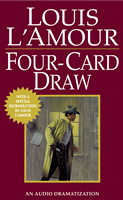
Louis L'Amour takes you back to the rough and tumble days of the Old West as you've never heard it before. A place with few rules -- where men and women are inclined to make their own. Complete with a full cast, stirring music, and dramatic sound effects.
This exclusive production has an introduction by Louis L'Amour
Allen Ring won the Red Rock Ranch in a poker game. But a man was shot in the back there a couple of years back. The murder is still unsolved, but someone seems convinced that Allen Ring has the missing answer. Ross Bilton was one of the men who found the body, and now he's the town marshall. Ring finds himself in the middle of a mysterious conflict-and maybe headed for a showdown with the marshall.
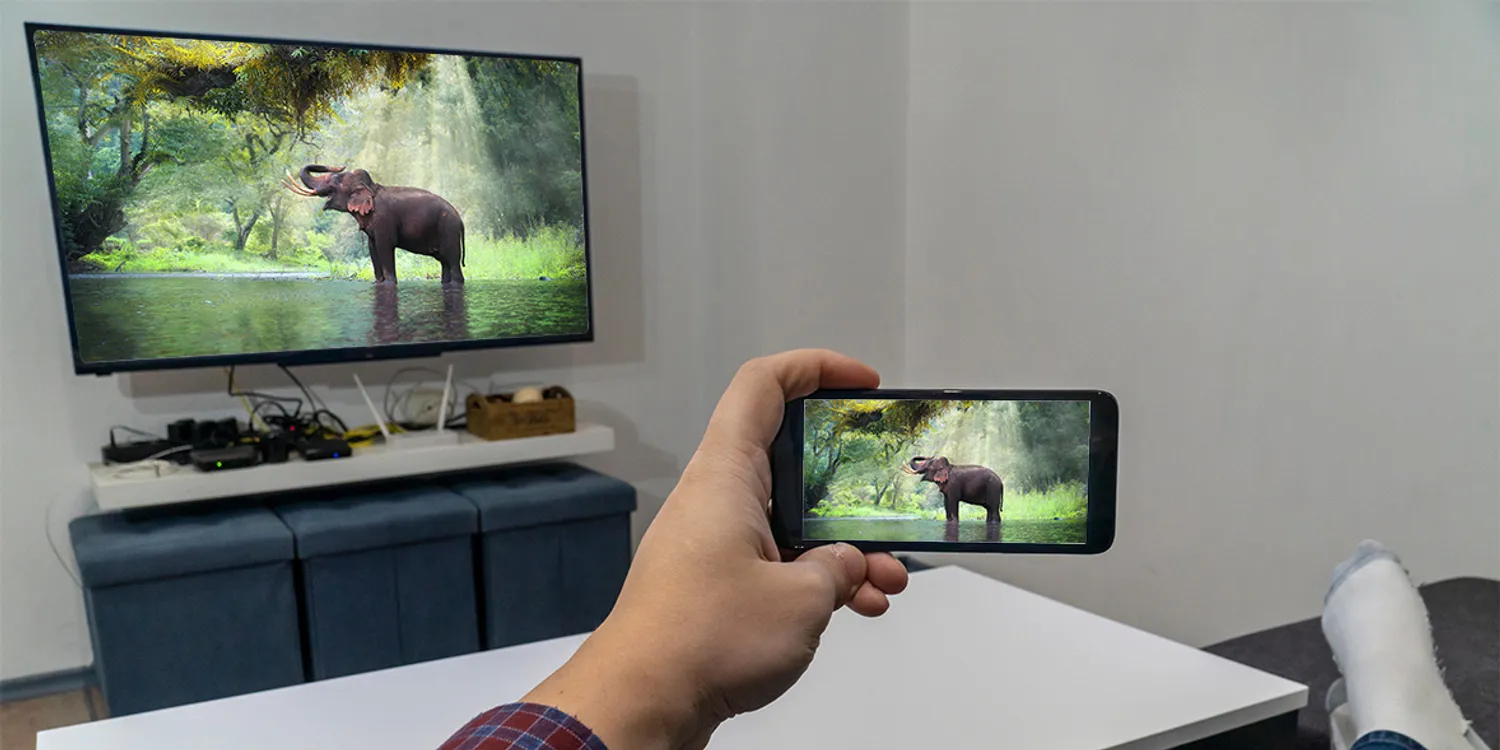
🖥️ Windows PC (Best Method)
Use Windows + K for the best wireless display experience:
Press Win + K on your keyboard
Select your TV from the list of wireless displays
Choose "Duplicate" or "Second screen only"
Play the video in fullscreen for best quality
💡 This uses Miracast/Wi-Fi Direct for smoother playback than Chrome tab casting.
📱 iPhone / iPad (AirPlay)
Tap the AirPlay button in the player (or use Control Center)
Select your Apple TV or AirPlay-compatible TV
Video will play directly on your TV
✅ AirPlay sends the stream directly to your TV for smooth playback.
🤖 Android
Option 1: Tap the Cast button (works with Chromecast devices)
Option 2 (Recommended): Use Screen Mirroring:
Swipe down for Quick Settings on your phone
Tap "Smart View" / "Screen Cast" / "Wireless Display"
Select your TV from the list
💡 Screen mirroring works with all TVs and all stream types.
⚠️ LG / Samsung Smart TVs - IMPORTANT
These TVs do NOT have native Chromecast support!
The cast button will connect but video won't play. You must use screen mirroring instead:
Best: Press Win + K (Windows wireless display)
Chrome: Menu (⋮) → Cast → Sources → Cast tab
Android: Quick Settings → Smart View / Screen Cast
💡 For smooth native casting, consider buying a Chromecast device (~$30). It plugs into your TV's HDMI port and enables true Chromecast support.
🔧 Troubleshooting
Make sure your TV and device are on the same WiFi network
Try restarting your TV or Chromecast
For laggy playback, try lowering the video quality
Right-click casting is always laggy - use the cast button instead
The Black Museum is a radio crime-drama program produced by Harry Alan Towers, which was broadcast in the USA on the Mutual network in 1952. It was then broadcast in Europe in 1953 on Radio Luxembourg, a commercial radio station, and was not broadcast by the BBC until 1991.
Towers was based in London, but this series was recorded in Sydney, Australia. In 1946 Towers and his mother, Margaret Miller Towers, started a company called Towers of London that sold various syndicated radio shows around the world, including The Lives of Harry Lime with Orson Welles, The Secrets of Scotland Yard with Clive Brook, Horatio Hornblower with Michael Redgrave, and a series of Sherlock Holmes stories featuring John Gielgud as Holmes, Ralph Richardson as Watson and Welles as Moriarty.
Towers visited Australia in the late 1940s and set up production facilities in Sydney. The Black Museum was produced in Sydney by Creswick Jenkinson on behalf of Towers of London. It had a top-line Australian cast including Joe McCormick, plus American actor Harp McGuire. Orson Welles's introductions were recorded on tape in London, then flown to Australia to be added to the locally recorded performances. This was the first series to be produced in Australia in this way.
The Black Museum was based on real-life cases from the files of Scotland Yard's Black Museum. The programme was transcribed in 1951 and was broadcast in the United States in 1952 on Mutual. More than 500 of the network's stations carried it. Ira Marion was the scriptwriter and music for the series was composed and conducted by Sidney Torch. This same music was used for the opening credits of, and incidental music in, the 1955 film They Can't Hang Me, starring Terence Morgan.
Orson Welles was both host and narrator of stories of horror and mystery, based on Scotland Yard's collection of murder weapons and various ordinary objects once associated with historical true crime cases.
The show's opening began:
"This is Orson Welles, speaking from London. (Sound of Big Ben chimes) The Black Museum ... a repository of death. Here in the grim stone structure on the Thames which houses Scotland Yard is a warehouse of homicide, where everyday objects ... a woman’s shoe, a tiny white box, a quilted robe ... all are touched by murder." Robert Rietti played the lead roles and Keith Pyott was often in the cast.
In 2002, Towers produced The Black Museum for television and hired director Gregory Mackenzie to be the showrunner and director for the anthology series using the original narration by Welles. The adaptation was shot on location in London in a film noir style and the pilot starred Michael York as Scotland Yard Inspector Russell.
MP3
A 32 Caliber Center Fire Bullet
The Notes (aka Kilroy Was Here)
The Notes (aka Kilroy Was Here)
FLAC
The Notes (aka Kilroy Was Here)

The Sangres Motorcycle Club are outlaws, notorious for drug-running, illegal weapons sales, and possibly even murder. But what they don’t know is that the Bureau of Alcohol, Tobacco, Firearms and Explosives has a man on the inside...
Can Darrin “Koz” Kozlowski survive long enough to bring them down from within?
KOZ tells the tale of how ATF agent Darrin “Koz” Kozlowski pulled off one of the largest organized crime busts in a generation. This gritty, LA-after-dark story dives deep into the world of one of the most dangerous motorcycle clubs in Los Angeles, bringing these unbelievable true events to life.
“Koz” works his way up the club ranks. But the more entrenched he becomes, the more the stakes grow and spiral. Either he proves he’s as ruthless as his Sangres brothers, or he risks his and his family’s lives. As the story speeds toward its conclusion, the question becomes: Will Koz unearth the Sangres’ dark secret? Or will he blow his cover and be run down before getting the chance?
Taylor Kitsch (Waco) and Kate Mara (House of Cards) star in this fast-paced, immersive Audible Original based on a true story. Its format features scripted storytelling from an all-star cast, and includes interview excerpts from the real Darrin “Koz” Kozlowski, allowing listeners to dive deeper into his psyche for the first time.
Please note: This content is for mature audiences only. It contains adult language and themes. Discretion is advised.

Jon Hamm leads an all-star cast that includes Kate Mara, Ana de la Reguera, John Slattery, and Bradley Whitford in the riveting true story behind the making of the one American movie the FBI never wanted you to see. All seven episodes will be available on June 16.
The Big Lie follows FBI special agent Jack Bergin (Jon Hamm), who is sent to investigate three blacklisted filmmakers—Academy Award-winning writer Michael Wilson, Academy Award-nominated producer Paul Jarrico, and director Herbert J. Biberman—who were inspired by a New Mexico labor strike to make a movie that dramatized their pro-labor, pro-feminist beliefs. Convinced the film is a recruitment tool for the Communist Party, Jack will do whatever is necessary to shut the production down.
Featuring a star-studded cast that also includes Giancarlo Esposito, David Strathairn, Lisa Edelstein, Raymond Cruz, Troy Evans, Kirk Baltz, John Getz, and Lela Loren, The Big Lie is an explosive story of conspiracy, betrayal, and temptation that resonates with today’s divided America and reminds us all that fear spreads faster than the truth.
Created by John Mankiewicz, based on a story from Paul Jarrico.

Follow Chick Bowdrie's adventure in these classic westerns by America's favorite storyteller, Louis L'Amour.
Chick Bowdrie could have been an outlaw, but he rode a different trail. The Texas Rangers recruited Bowdrie to help pursue the most wanted men in the Southwest. And Bowdrie knew the terrain all too well: the dusty trails, bitter cattle feuds, the desperate killers, and the weather-beaten towns that could explode into chaos at the wrong word. The Rangers were called in to handle the tough cases, and Bowdrie was the toughest and smartest. He had vowed to seek out justice, but there were times when justice required fists and guns...
Link: The Collected Bowdrie Dramatizations - Volume 1 by Louis L'Amour
Collection of greatest bits from the Blue collar Comedy Tour's CD/DVD history: The Blue Collar Comedy Tour Live 92001), Blue Collar Comedy Tour: The Movie (2003) Blue Collar Comedy Tour: Rides Again (2004) Blue Collar Comedy Tour: One for the Road (2006)
Recent


