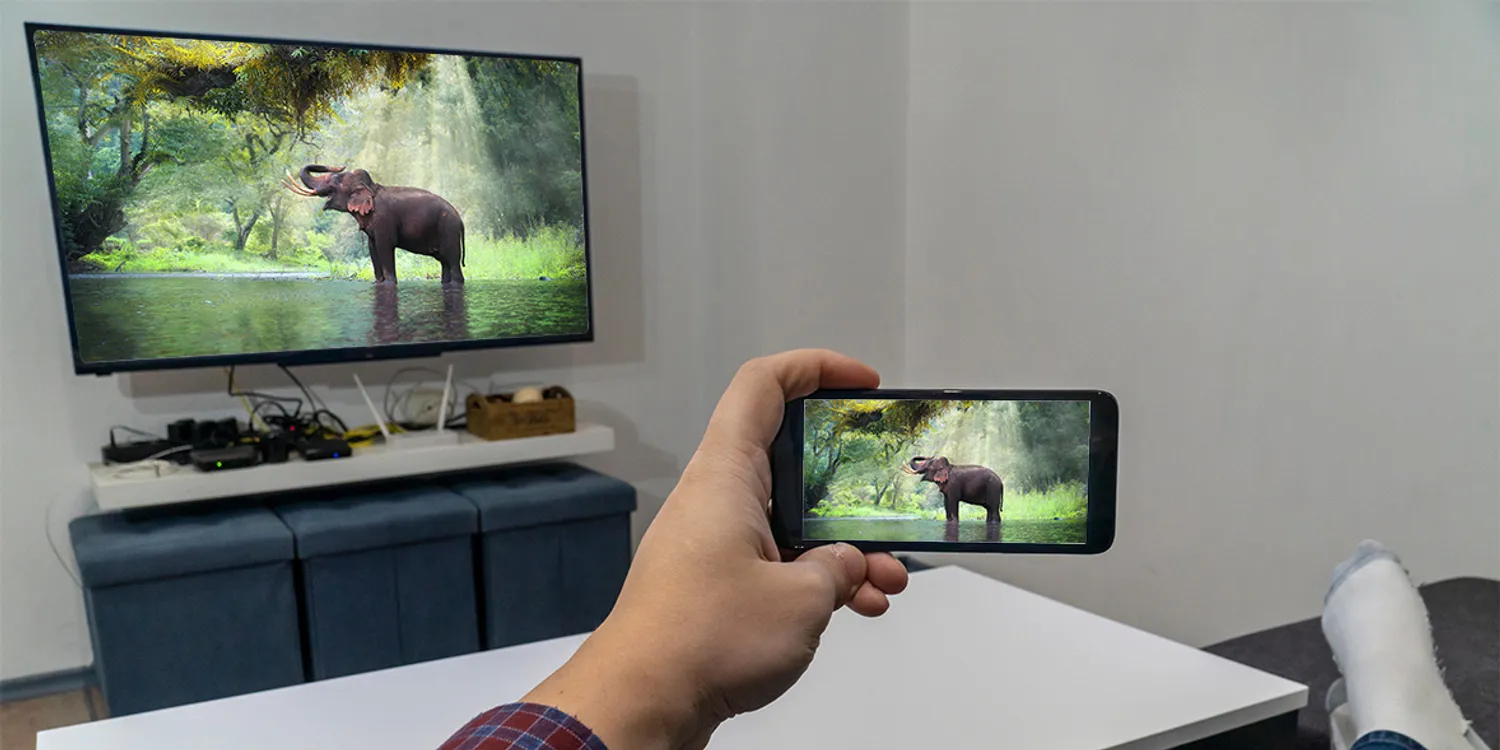
🖥️ Windows PC (Best Method)
Use Windows + K for the best wireless display experience:
Press Win + K on your keyboard
Select your TV from the list of wireless displays
Choose "Duplicate" or "Second screen only"
Play the video in fullscreen for best quality
💡 This uses Miracast/Wi-Fi Direct for smoother playback than Chrome tab casting.
📱 iPhone / iPad (AirPlay)
Tap the AirPlay button in the player (or use Control Center)
Select your Apple TV or AirPlay-compatible TV
Video will play directly on your TV
✅ AirPlay sends the stream directly to your TV for smooth playback.
🤖 Android
Option 1: Tap the Cast button (works with Chromecast devices)
Option 2 (Recommended): Use Screen Mirroring:
Swipe down for Quick Settings on your phone
Tap "Smart View" / "Screen Cast" / "Wireless Display"
Select your TV from the list
💡 Screen mirroring works with all TVs and all stream types.
⚠️ LG / Samsung Smart TVs - IMPORTANT
These TVs do NOT have native Chromecast support!
The cast button will connect but video won't play. You must use screen mirroring instead:
Best: Press Win + K (Windows wireless display)
Chrome: Menu (⋮) → Cast → Sources → Cast tab
Android: Quick Settings → Smart View / Screen Cast
💡 For smooth native casting, consider buying a Chromecast device (~$30). It plugs into your TV's HDMI port and enables true Chromecast support.
🔧 Troubleshooting
Make sure your TV and device are on the same WiFi network
Try restarting your TV or Chromecast
For laggy playback, try lowering the video quality
Right-click casting is always laggy - use the cast button instead


Comments